How to Add a Signature in Google Docs (And Why It May Be a Terrible Idea)
Google Docs is great right up until somebody needs to sign something. Then things start getting weird.
There are three ways people add signatures to Google Docs. The first feels like drawing with a potato, and the second one is what most freelancers end up doing. The third is Google's newer eSignature feature which, while more capable, ends up making things more messy than they need to be.
Here’s how each method works, where the limitations start appearing, and why most just move to dedicated proposal software instead.
What we'll cover:
- Drawing the signature
- Pasting in an image
- Google Docs eSignatures
- How to add a signature in Google Docs
- What it looks like from the client's perspective
- The audit trail
- The core problem with eSignatures in Google Docs
- The solution
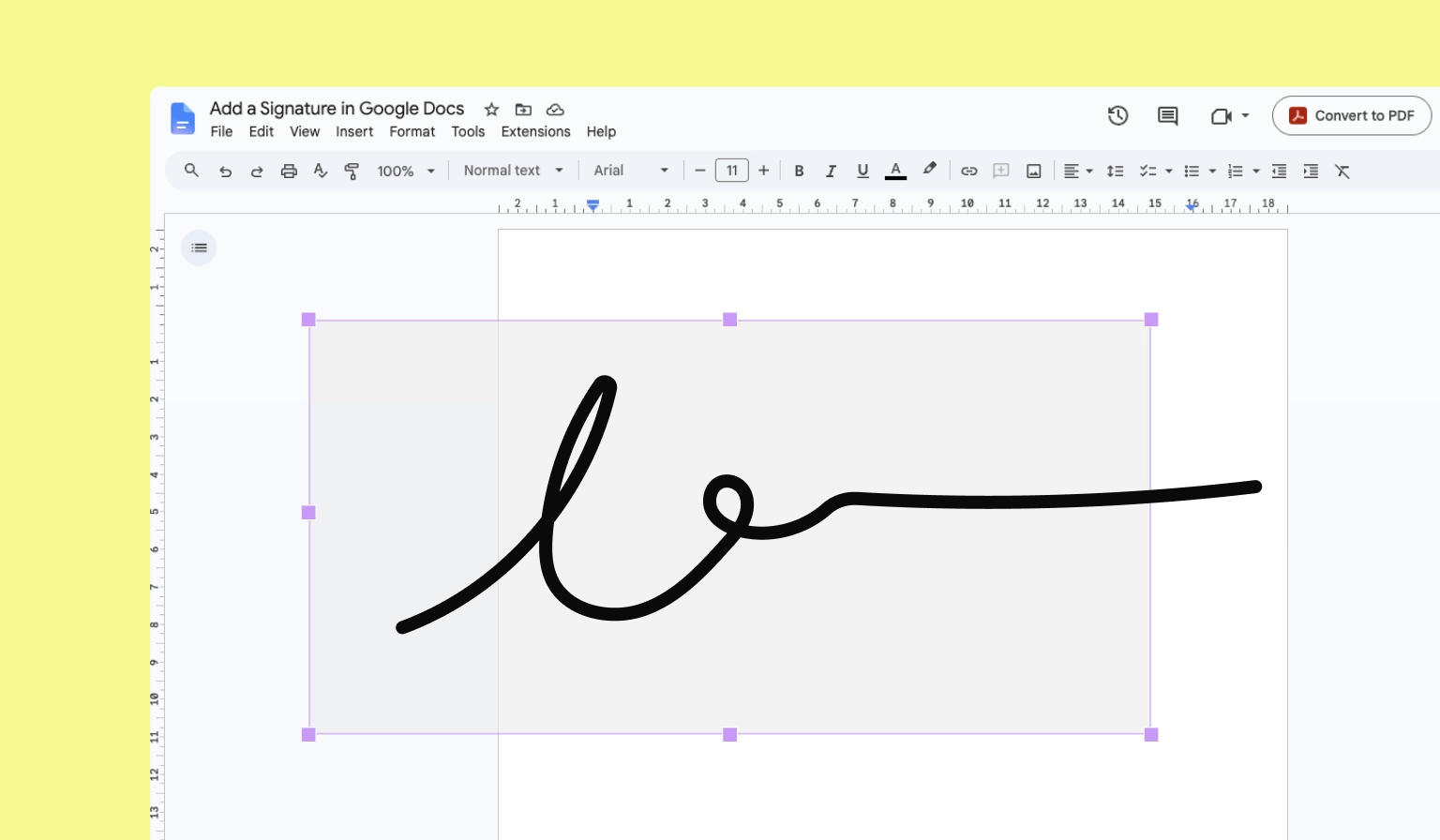
Option #1: Draw your signature
Also referred to earlier as the drawing with a potato method.
Is it fast? No.
Is it easy? No.
But will it hold up in court? You have three guesses.
To do it:
- Open your document
- Click Insert → Drawing → New
- Select the line tool
- Choose Scribble
- Attempt handwriting with a mouse or trackpad
- Save and insert
The end result usually looks like you signed for a package during an earthquake.
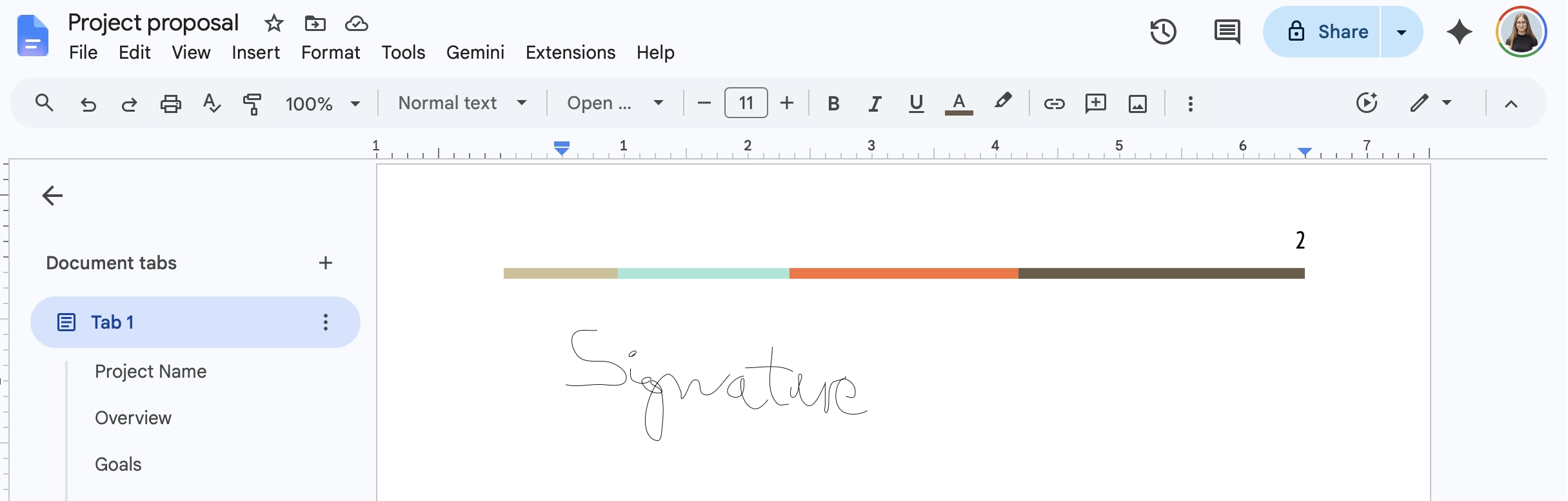
To be fair, this method can work fine for internal approvals, but it’s just a drawing pasted into a document. There’s no identity verification, no audit trail, and no protection against edits after signing.
Option #2: Upload a signature image
Looks more professional than the scribble method, but it's still just an image inside a document rather than an eSignature.
To do it:
- Sign your name on paper
- Take a photo or scan it
- Make the background transparent
- Insert into Google Docs as an image
For basic approvals or informal agreements, this works reasonably well. It’s cleaner than drawing directly inside Google Docs and takes less effort once you have the image saved.
The problem is that the signature itself isn’t connected to any kind of verification process. That means:
- The document can still be edited after signing
- Anybody with editing access can move or replace the signature
- There’s no audit trail showing who signed which version
- There’s no timestamped verification tied to the approval itself
If the work gets done, the invoice gets paid, and everybody stays happy, most people won't think twice about a pasted signature image. That said, “there is a signature image in the Google Doc” is not the position you'll want to be arguing from in case of a dispute.
Option #3: Google Docs eSignatures
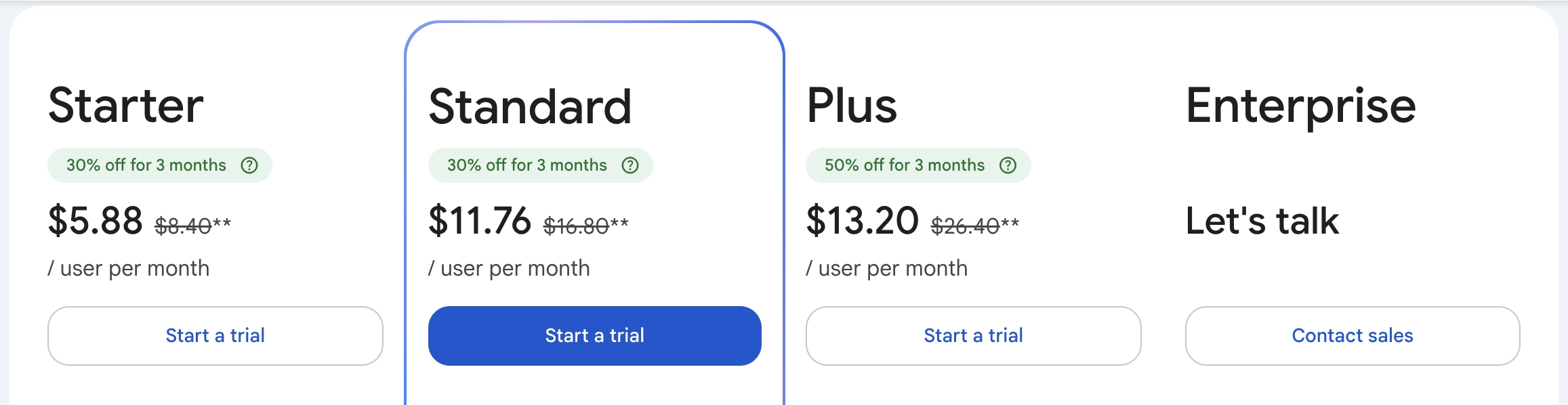
Certain Google Workspace plans now include built-in eSignature functionality inside Docs and Drive. You'll need to have at least the Standard plan at $16.80/user/month to be able to request signatures on your documents.
How to add signatures in Google Docs
To add signatures to your Google Docs, you'll first need to create a document or upload it to your Google Drive. When you open your document and click on Tools > eSignature, you'll see a sidebar appear on the right.
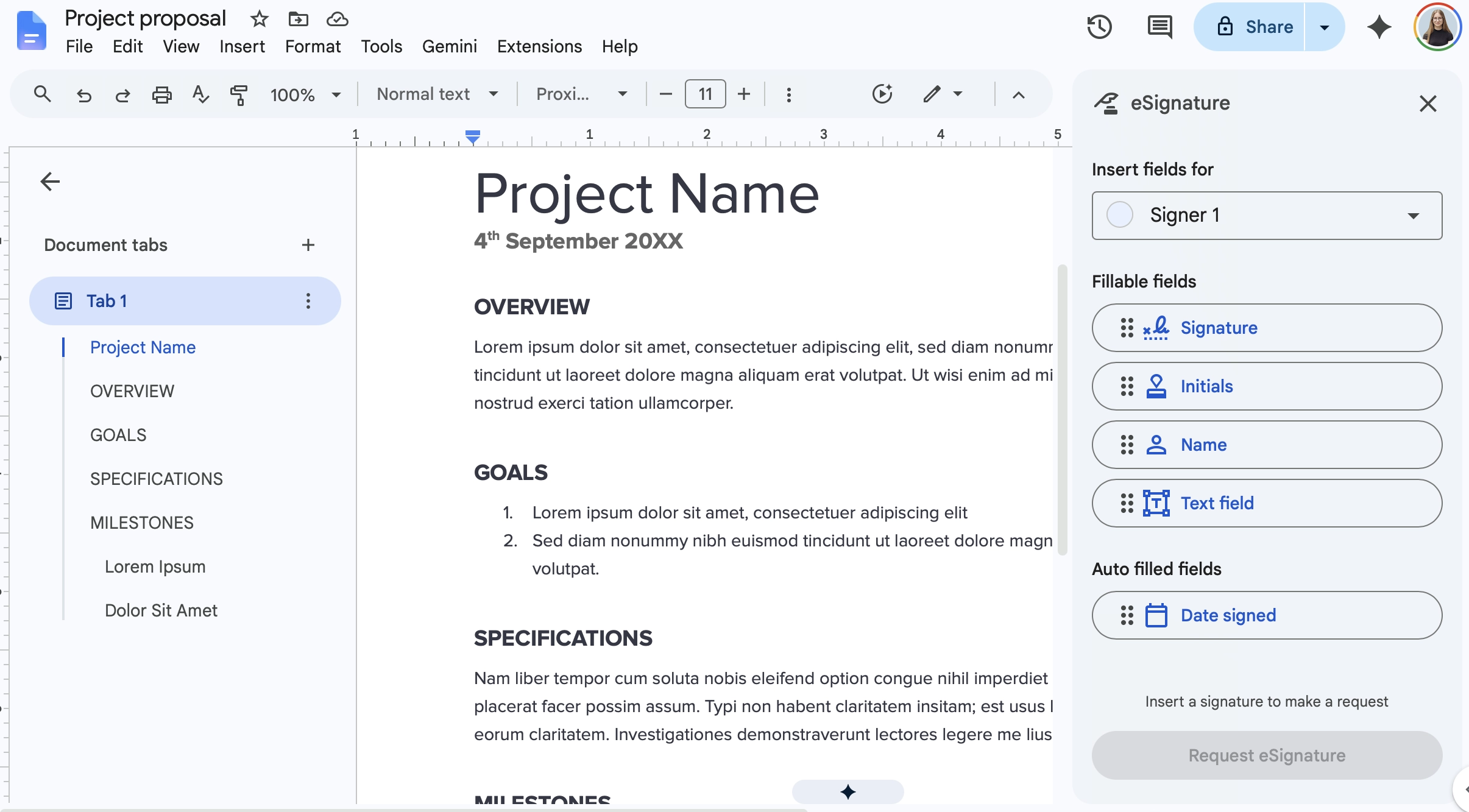
From there, click on Manage signers, and add up to 10 people who need to sign your document.
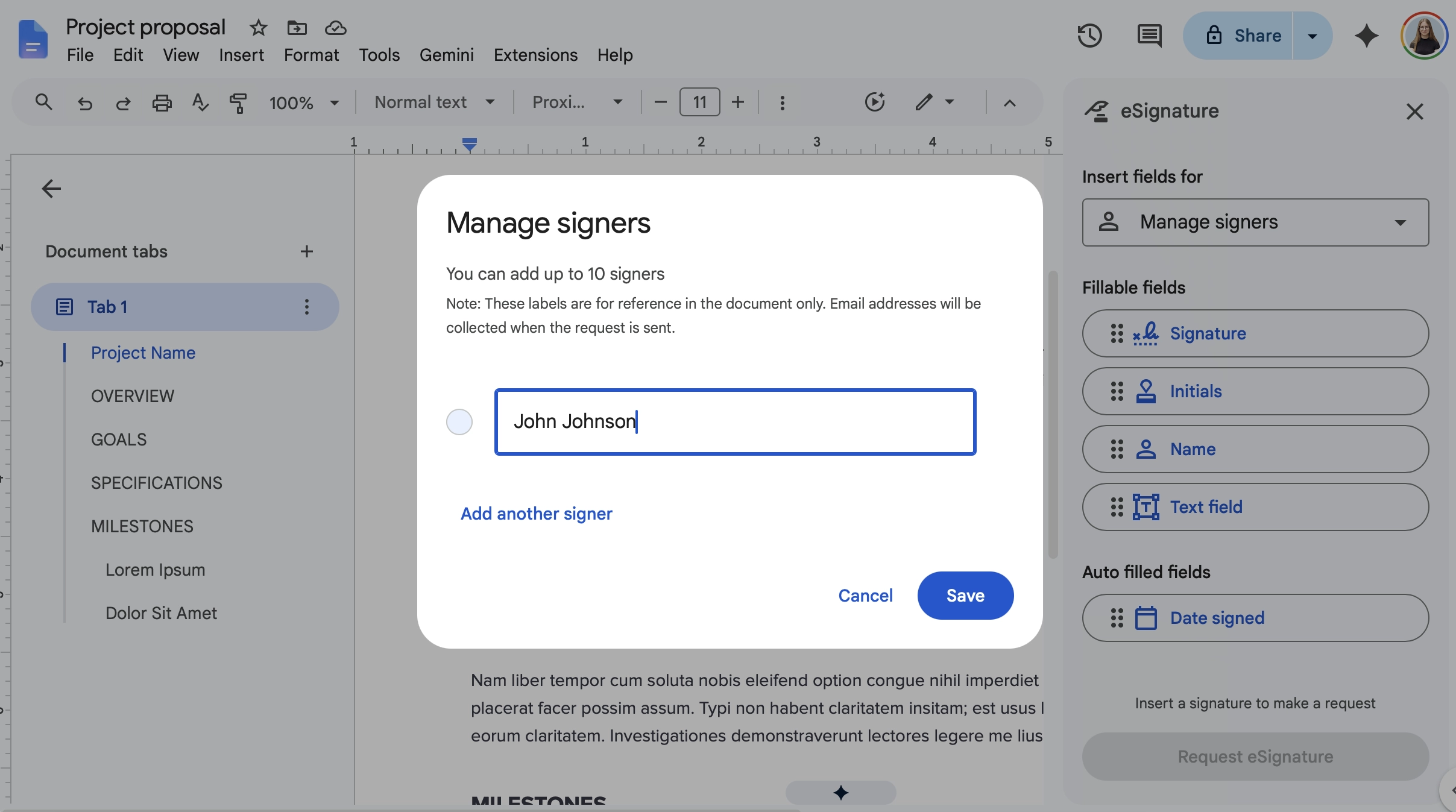
The default labels will be Signer 1, Signer 2, and so on. You can change these to their actual names, but you don't have to. The signer labels don't do much on their own, as the signers will need to type in their names later on.
Once you've added your signers and each of their signature fields into the Google Doc, you'll need to click on Request eSignature and fill in their email addresses.
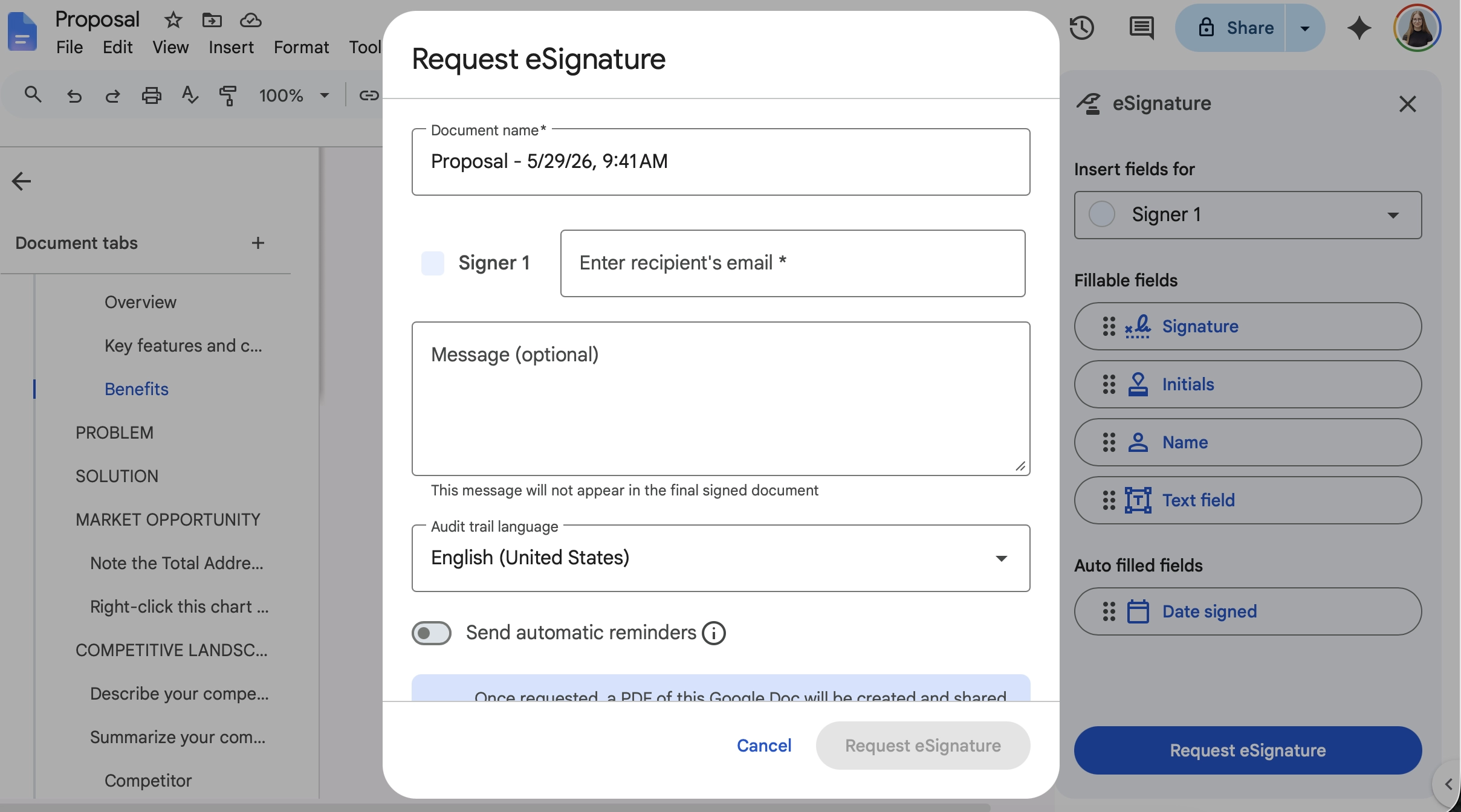
This is also where you can rename your document, enter a message, and turn on automatic reminders. If you turn the reminders on, they'll receive them every three days until the document is signed or three reminders have been sent.
What it looks like from the client's perspective
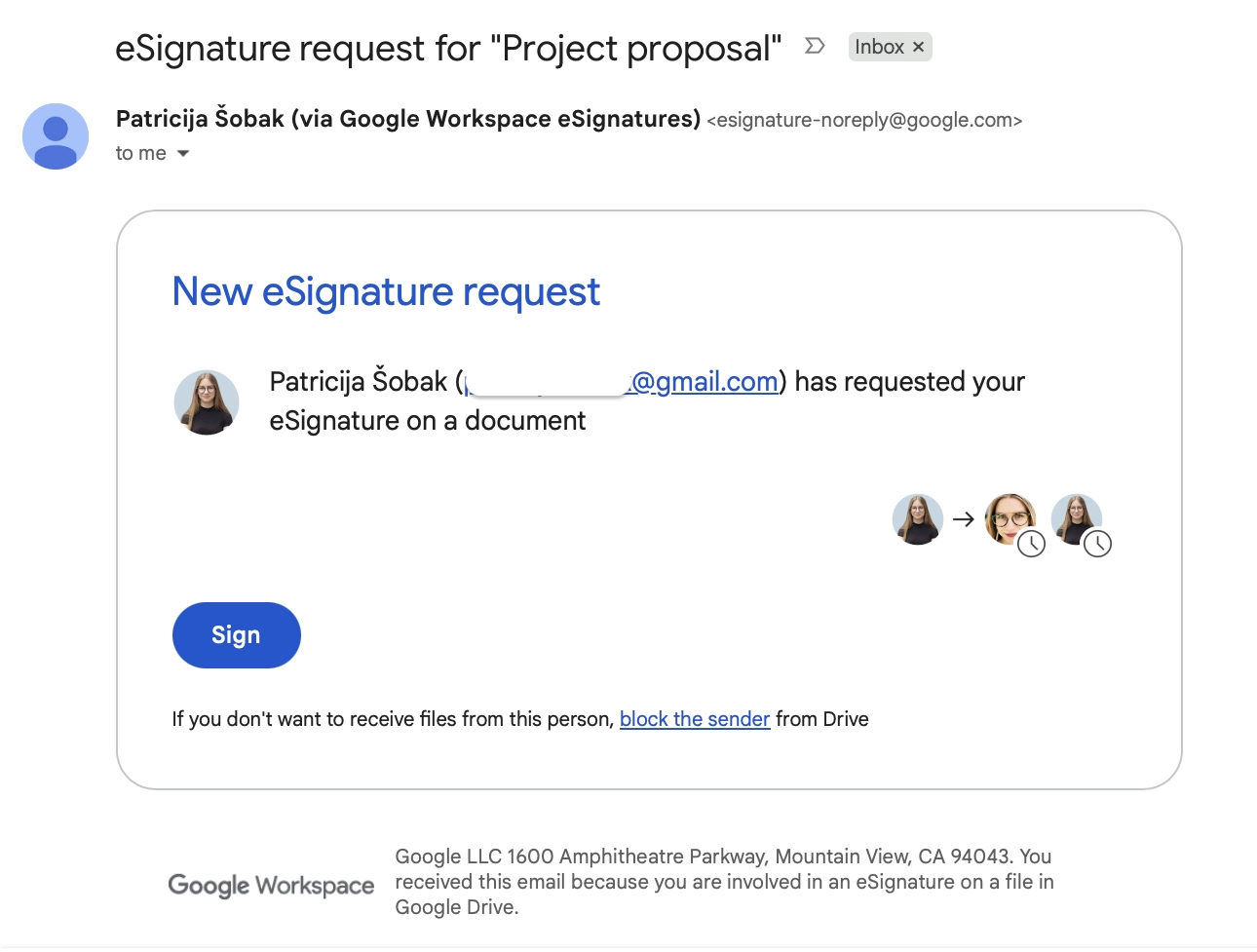
When you click on Request eSignature, your client will receive an email with a link to your document.
Now, remember how you can add their name to the singer label? When the signer clicks on the signature field, they're asked to confirm their name before signing.
At first glance, this gives you, the sender, the impression that Google is checking the name against the signer you've assigned, the email address you entered, or both.
But that's not what happens.
The signer can simply type whatever they want into the prompt and continue.
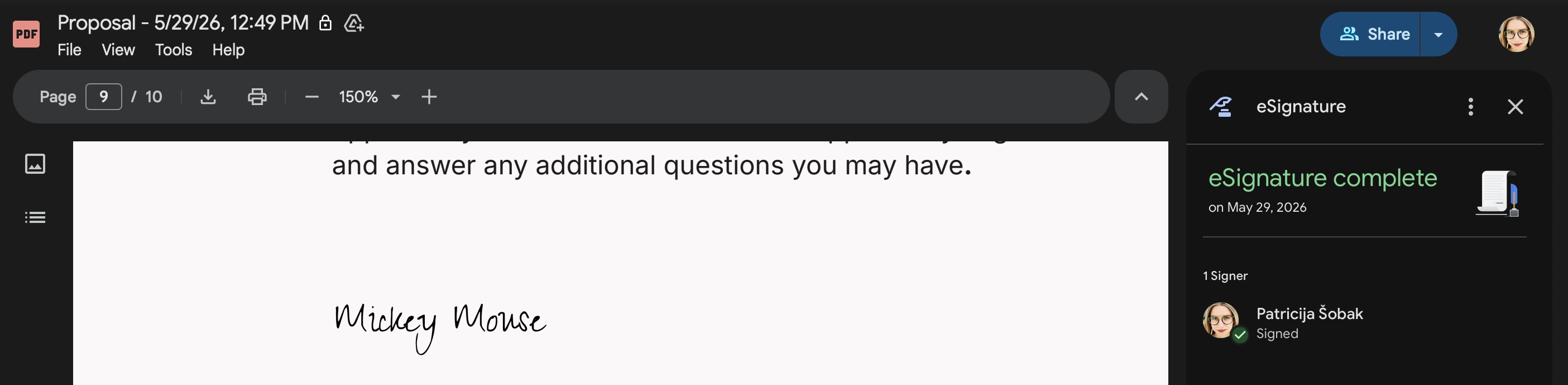
The signer labels are really just placeholders to help you organize fields inside the document. They're not part of any meaningful identity verification process.
Now that they've typed in their name, they need to click on yet another button to mark the signature as complete. When they do, they'll be met with a prompt to accept Google's terms of service.
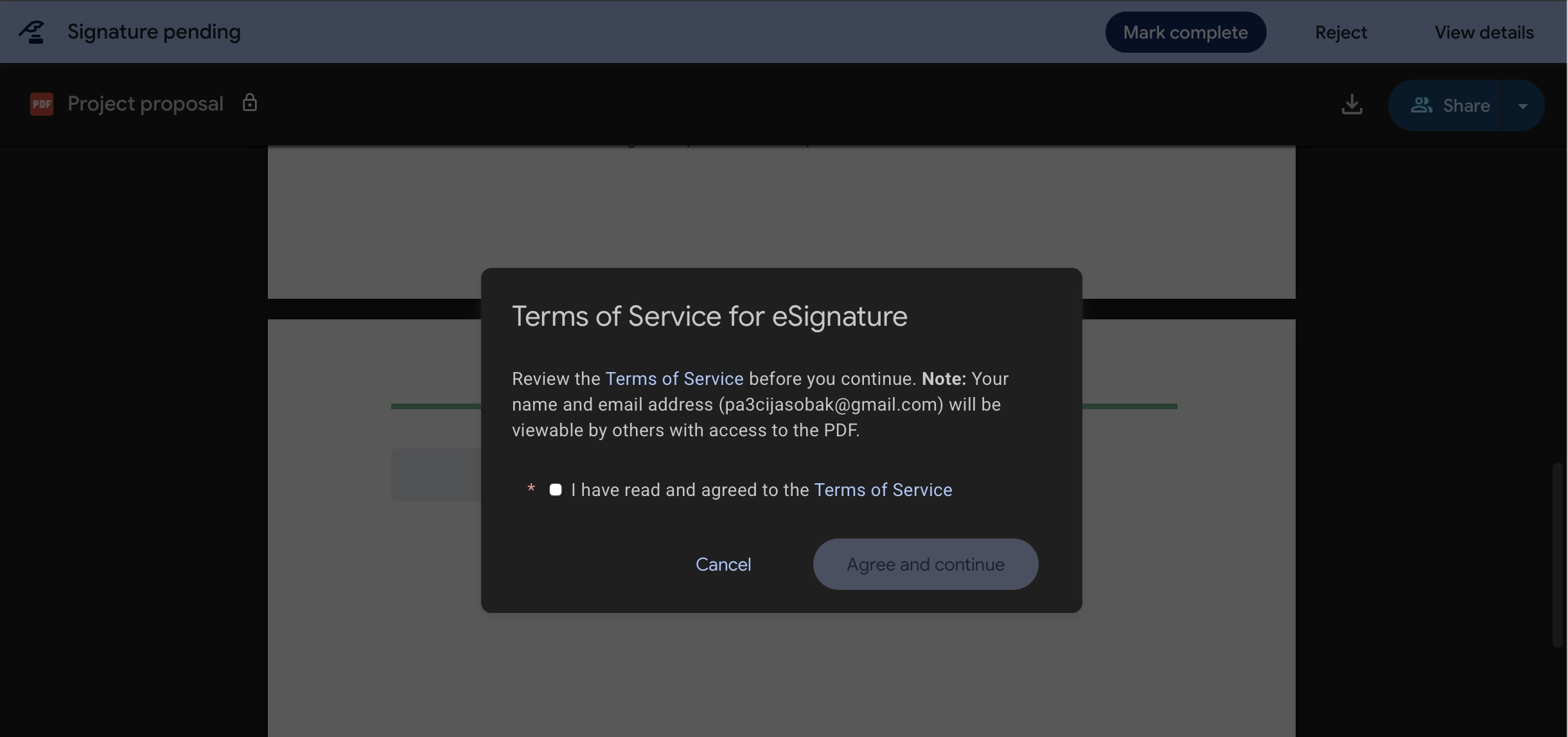
From your client's perspective, they've signed the document, clicked on a button to confirm. Then they had to click on another button to finish the process, only to be asked to review terms and agree to them. It's a bunch of extra steps that create friction.
The goal is to make it as easy as possible for somebody to review a document, make a decision, and sign it. Every additional screen, prompt, agreement, or explanation gives them another opportunity to close the tab and tell themselves they'll come back to it later.
What about the audit trail?
Once your document is signed, an audit trail will be added as a separate page of the document. It records when the document was sent, when it was signed, and when it was completed.
That’s useful, but it’s also fairly light. The audit trail doesn’t record the signer’s IP address, and the signer name is simply whatever the signer typed in during the signing process with the email address shown in brackets.
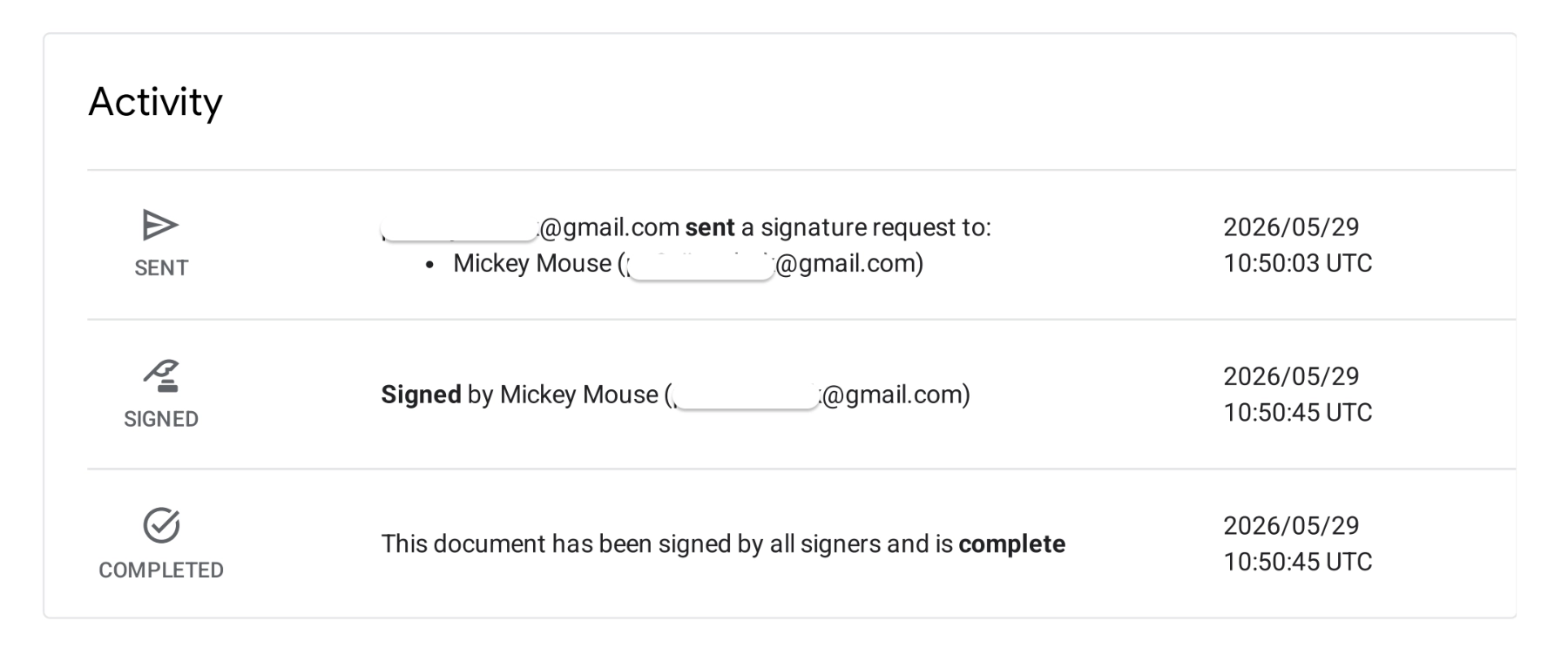
That doesn’t automatically make the signature invalid, but it does mean the audit trail gives you less to work with if someone later disputes who signed the document or claims their email was accessed by someone else.
The core problem: Google Docs wasn't built for sales
If your goal is to create, edit, review, and share documents with other people, Google Docs is hard to argue with. That's exactly what it was designed to do.
The problems start when you try to force a collaboration tool into becoming a sales tool. From the moment you request a signature, you're operating in the dark.
Did they open it?
Did they read it?
Did they share it with somebody else?
Did they spend twenty minutes looking at your pricing before disappearing into the void?
Google Docs won't tell you because activity tracking just doesn't exist.
Meanwhile, your client receives an email, reviews a PDF version of your document, and works through Google's signing flow. It gets the job done, but it never feels seamless.
The same pattern appears across the board. Every eSignature request creates additional PDFs that consume storage and add to the administrative mess already sitting in your Drive.
The templates are basic. There are no automatic fields to pull in client data, no interactive pricing, no approval workflows, no reporting on performance.
Why proposal software makes more sense
By the time you've finished setting up Google Docs eSignatures, you've already admitted you need more than a document editor.
You need documents reviewed, approved, signed, and accepted. That's a sales problem, not a document problem.
Instead of starting with a document and then figuring out how to add signatures, approvals, and client management after, proposal software treats all of those things as part of the same workflow from the beginning.
You have access to professionally designed templates, you can save commonly used sections in a content library, and automatically pull client information into the document.

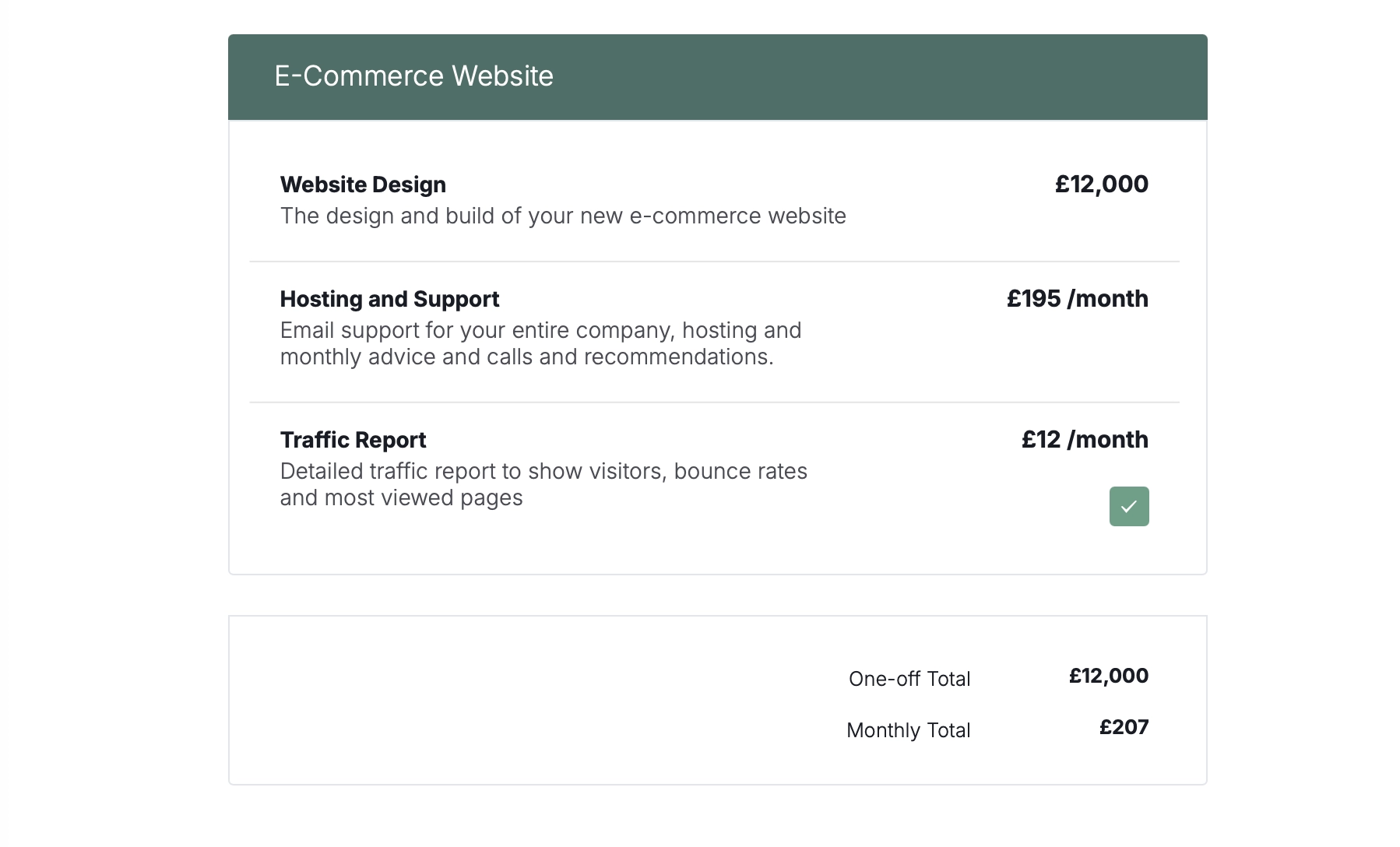
Pricing tables can be updated in a few clicks. You can let clients upsell themselves with optional add-ons and choose between different plans.
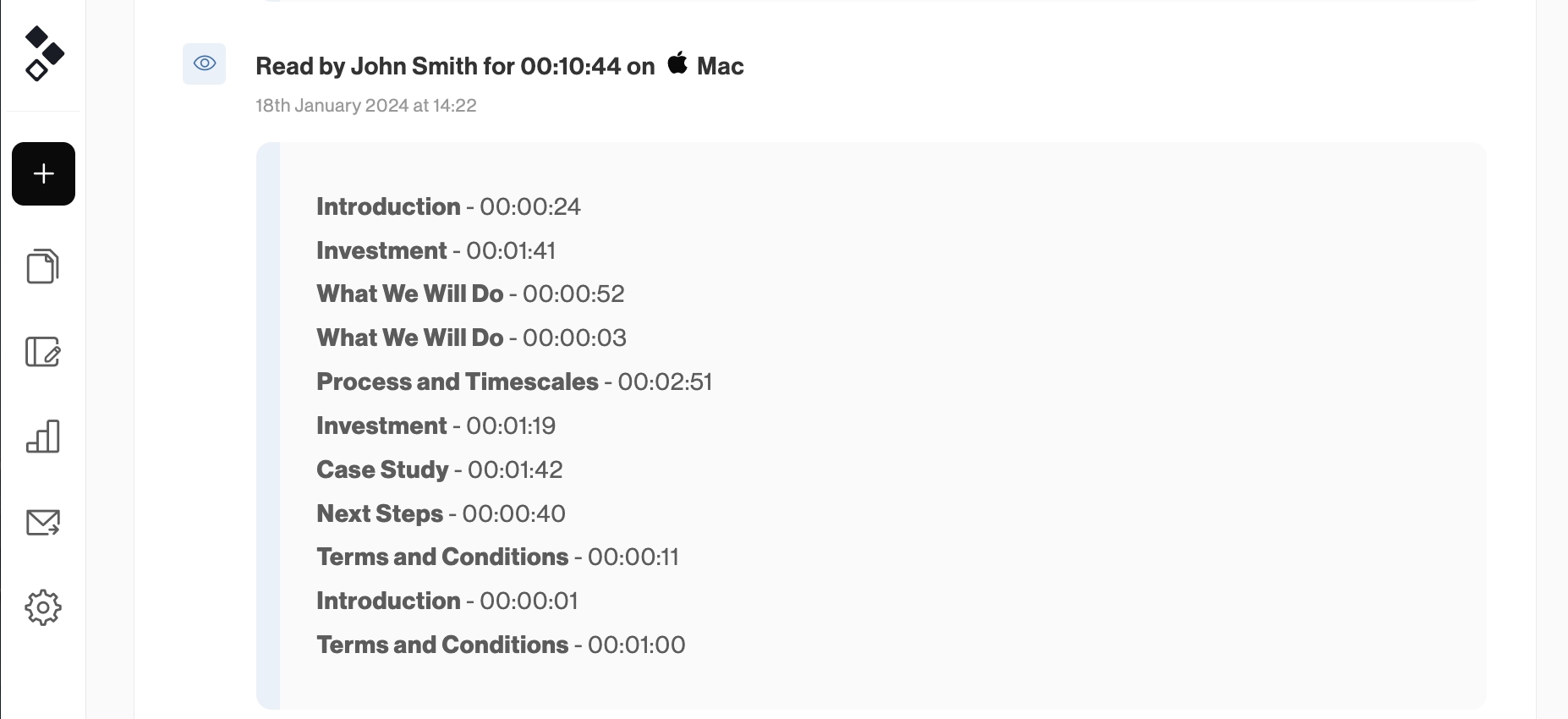
Once the proposal is sent, the visibility is right there. You can see when a client opens it, how many times they've viewed it, and which sections they're spending time reading.
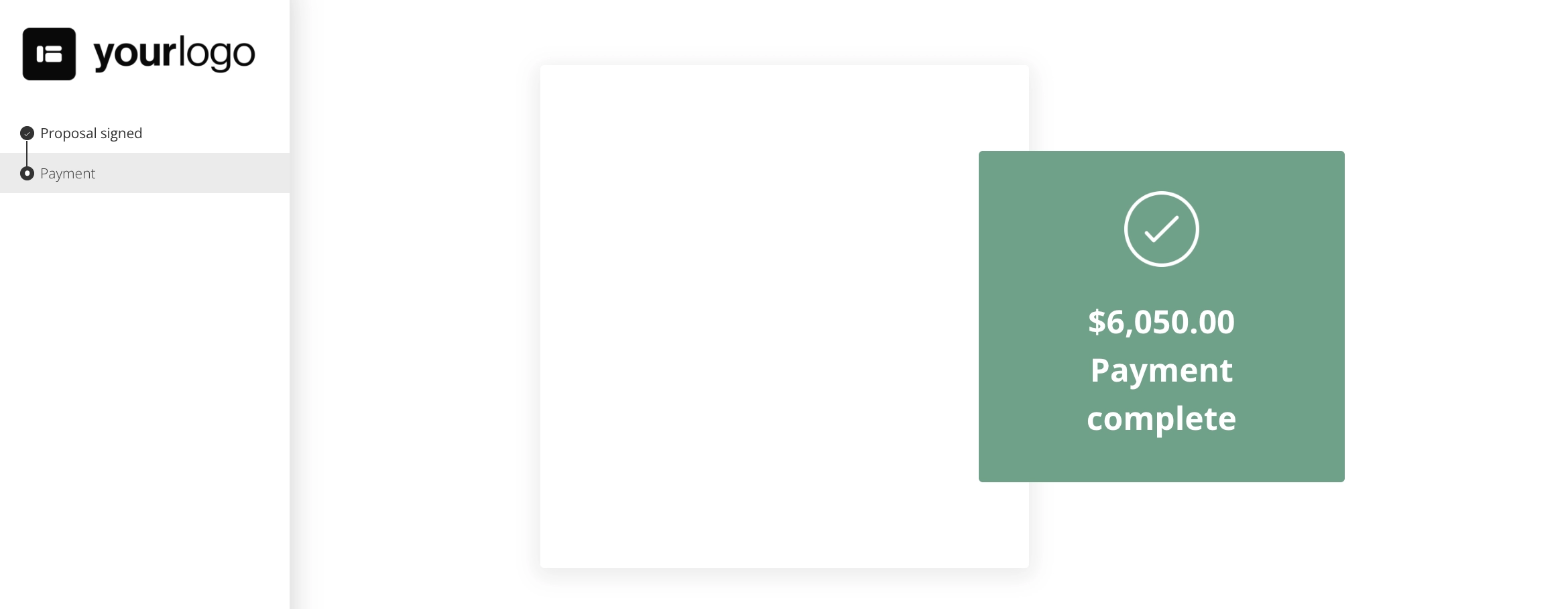
And when they're ready to move forward, signatures, payments, and onboarding happen inside the same workflow instead of being scattered across PDFs and email threads.
Final thoughts
If you only need a signature occasionally, there's nothing wrong with using the tools you already have. For a one-off document, Google Docs eSignatures will get the job done.
But if you're sending proposals, contracts, and statements of work on a regular basis? Signatures are only one small part of the workflow.
The real challenge is moving deals forward without creating unnecessary friction for your team or your clients. That's when proposal software starts making a lot more sense.